---
title: "Managing Your Main Line in Dialpad: Settings, Hours & Call Flow"
description: Learn how to manage your Dialpad Main Line settings including advanced call routing, voicemail handling, failover options, CRM integrations, and spam filtering.
---
[Skip to content](https://knowledge.untangledict.com.au/dialpad-main-line-call-routing-setup#main-content)
English
Show submenu for translations
[Raise a Support Ticket](https://knowledge.untangledict.com.au/kb-tickets/new?hsLang=en)
[](https://knowledge.untangledict.com.au/?hsLang=en)
- Home
- Products
- Pricing
- Blog
- Company
Open main navigation
Close main navigation
- Home
- Products
- Pricing
- Blog
- Company
- English
Show submenu for translations
- [Raise a Support Ticket](https://knowledge.untangledict.com.au/kb-tickets/new)
- Go to www.untangled.com
Go to www.untangled.com
Looking for answers? Search our knowledge base to find solutions quickly.
- There are no suggestions because the search field is empty.
1. [Untangled Help Centre](https://knowledge.untangledict.com.au/?hsLang=en)
2. [Using Dialpad](https://knowledge.untangledict.com.au/using-dialpad?hsLang=en)
3. [Dialpad Admin](https://knowledge.untangledict.com.au/using-dialpad?hsLang=en#dialpad-admin)
# Managing Your Main Line in Dialpad: Settings, Hours & Call Flow
```
Published 27 May 2025
```
**Overview**
When you sign up for Dialpad, you're assigned a **Main Line number**—this is the **primary number** for your business. It's used for inbound calls and is shared by **multiple operators**, allowing your team to receive and place calls from a single, unified number.
**What's the difference between a Main Line and a Department?**
- **Main Line:** Your company’s general phone number (e.g., reception or general inquiries).
- **Department:** A specific team (like Sales or Support) with its own number and routing rules, or no number but is a part of the IVR or Automated Response Menu on the Main Line.
**⚠️ Important:** Access to Main Line call routing settings is restricted to users with **Dialpad Admin** privileges.
**Steps and What You May Update:**
[1. Access Main Line Settings](https://knowledge.untangledict.com.au/dialpad-main-line-call-routing-setup#Access)
[2. Update Main Line Info](https://knowledge.untangledict.com.au/dialpad-main-line-call-routing-setup#Update)
- [Assign Operators and Phones](https://knowledge.untangledict.com.au/dialpad-main-line-call-routing-setup#operators)
- [Set Business Hours & Call Routing](https://knowledge.untangledict.com.au/dialpad-main-line-call-routing-setup#businesshours)
[3. Edit Call Routing](https://knowledge.untangledict.com.au/dialpad-main-line-call-routing-setup#Edit)
[4. Enable AI Settings](https://knowledge.untangledict.com.au/dialpad-main-line-call-routing-setup#Enable)
[5. Integrations & Advanced Settings](https://knowledge.untangledict.com.au/dialpad-main-line-call-routing-setup#Integrations)
### 1. Access Main Line Settings
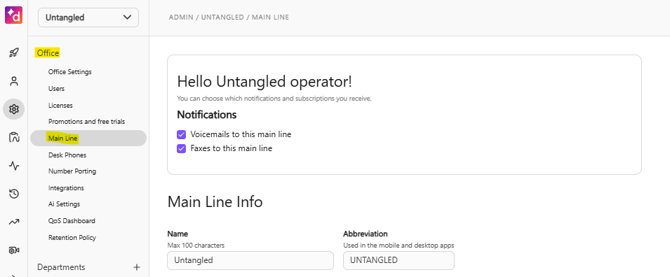
- Go to [Dialpad.com/officesettings](http://Dialpad.com/officesettings)
- On the left panel, navigate to **Office** and click **Main Line**
****
### 2. Update Main Line Info
- You may rename your main line
**Tips for Naming Your Main Line**
Choosing a clear and consistent name for your Main Line makes it easier to manage your account—especially as your business grows or adds multiple lines and departments.
Here are some helpful tips:
- If you have one main line for your business, consider using your business name.
- If your business has multiple branches or offices, include the location in the name to avoid confusion.
**Example:** `Acme Corp - Sydney` or `Acme HQ - Melbourne`
- Use abbreviations or concise terms to make it easier to identify in call logs and routing menus.
- Steer clear of names like “Main Line 1” or “Phone Line” — these can be confusing later when you have more lines or departments.
- If you plan to scale, use a consistent structure across all lines and departments.
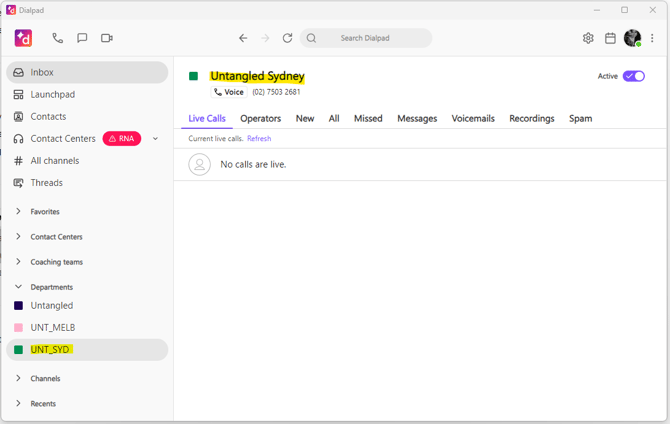
- Dialpad allows you to add an abbreviation that displays in your call interface. Choose something short and intuitive.
**Example:** UNT\_MELB and UNT\_SYD have been used as abbreviations for the Untangled Melbourne and Untangled Sydney locations
****
#### Assign Operators and Phones
- Navigate to and click on **Assigned Operators and Phones**
- Assign team members as operators to handle calls
- Add any room phones that have been configured (eg. Reception Phone)
#### Set Business Hours & Call Routing
- Go to the **Business Hours & Call Routing** section in your Main Line settings.
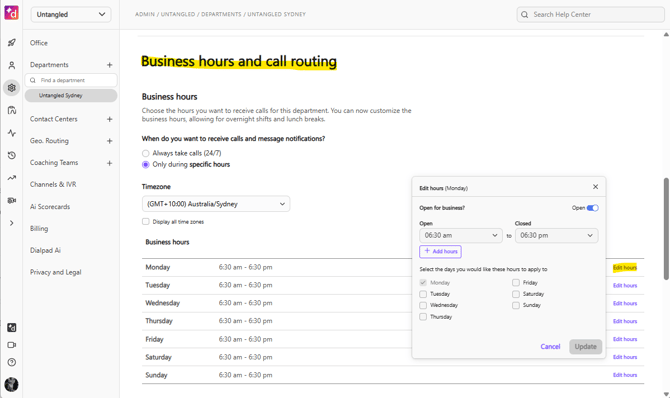
- Under **Business Hours**, click **Edit Hours** next to any day to set when your Main Line will accept calls.
- Choose from the following options:
- **Open 24 hours**
- **Closed all day**
- **Custom hours** — Set specific open and close times for each day.
💡 Tip: You can create split shifts by clicking **+ Add Hours** if your business opens more than once in a day (e.g. morning and evening hours).
- Once your hours are set, scroll down to customise call routing rules for: **Open Hours** and **Closed Hours** by following steps for [Edit Call Routing](https://knowledge.untangledict.com.au/dialpad-main-line-call-routing-setup#Edit) below.
⚠️ **Important:** When a call is routed to a **Department, Office, or Call Centre**, the **personal working hours** set by each assigned operator will take precedence over the entity’s configured hours.
For example:
If the **Department is set to accept calls Monday–Saturday, 8:00 AM to 5:00 PM**, but a **user assigned as an operator** has set their personal working hours to **Monday–Friday, 8:00 AM to 3:00 PM**, they will **only receive calls during their personal set hours** (Monday to Friday, 8:00 AM to 3:00 PM).
This ensures that users only receive calls during the times they’ve personally opted in for, even if the shared line is open longer.
### How Admins Can Check Personal Working Hours (Proxy Login)
Admins can review a user's personal working hours by using the **Proxy Login** feature:
- Go to [**dialpad.com/officesettings**](http://dialpad.com/officesettings)
- Click **Users** in the left-hand menu
- Locate the user and click the **3 vertical dots** next to their name
- Navigate to **Admin** \> **Proxy login**
- You will be logged in as that user and can view their **Personal Working Hours** under Your Settings \> Call Handling and Voicemai
This is useful for verifying operator availability or troubleshooting routing issues based on user schedules.
Once your business hours are set, scroll down to customise call routing rules for **Open Hours** and **Closed Hours** by following the steps in [**Edit Call Routing**](https://knowledge.untangledict.com.au/dialpad-main-line-call-routing-setup#Edit) below.
### 3. Edit Call Routing
Call Routing determines **how incoming calls are handled** during your open and closed hours. Here's how to configure it.
⚠️ **Important:** This page has **two tabs** — one for **Open Hours Routing** and one for **Closed Hours Routing**. Make sure you configure both to ensure calls are handled properly at all times.
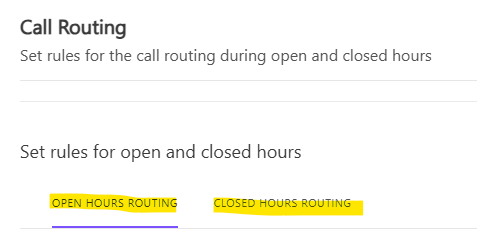
From **Main** **Line \> Business Hours & Call Routing** section, click on **Edit Call Routing**:
#### **Routing Options**
Choose how calls are routed when your Main Line is open.
- **Operator(s)**: Route calls to one or more team members.
- **Other routing options**: Choose advanced settings if needed (like forwarding to another number).
Next, decide how you want to distribute calls:
- **Longest idle**: Sends calls to the person who’s been idle the longest.
- **Fixed order**: Rings team members in a specific order.
- **Round robin**: Rotates evenly through your team.
- **Simultaneous**: Rings everyone at the same time.
#### **Open/ Closed Hours Welcome Greeting**
Set a custom greeting that callers hear during open hours.
- Use the dropdown to select an existing greeting or record a new one.
- You can upload an audio file or record using your device microphone.
**⚠️ Important Note:** If you want to set up a **Closed Hours Greeting**, scroll back to the top and click on **Closed Hours** to set it up.
**🔈 Tip:** A friendly greeting can reassure callers and let them know they’ve reached the right place.
**🎓 Understanding Greetings**
Dialpad allows you to customise greetings based on different points in the caller’s journey. Here's how Open Hours Welcome Greeting and Voicemail Greeting during Open Hours differ:
**Open Hours Welcome Greeting**
- **When it plays:** This is the **first thing callers hear** when they reach your Main Line during your business hours or closed hours.
- **Purpose:** It confirms they’ve called the right place and sets the tone for the call.
- **Example:** “Thanks for calling ABC Company! Please hold while we connect you to a team member.”
💡 *Think of it as your receptionist answering the phone with a friendly hello.*
**Voicemail Greeting**
- **When it plays:** This greeting plays **only if no one answers the call** (e.g., all operators are busy or unavailable), and the call is sent to voicemail.
- **Purpose:** It lets callers know they’ve reached voicemail and encourages them to leave a message.
- **Example:** “You’ve reached us outside of our availability. Please leave a message and we’ll get back to you shortly.”
💡 *This is your chance to reassure customers that you’ll follow up, even if you missed their call.*
#### **Ring Duration**
Choose how long to ring each team member before moving to the next step.
- Default is 30 seconds. You can adjust it from 10 to 45 seconds.
- 10s = 2 rings
- 45s = 8 rings
#### **Hold Queue**
Enable this if you want to keep callers on hold until someone becomes available. The **Hold Queue** is a helpful feature that temporarily places callers on hold **only when all available operators are currently on active calls**.
**When do calls GO to the hold queue?**
✅ **Calls are placed in the Hold Queue** if all operators are:
- On another call
**When do calls NOT go to the hold queue?**
❌ **Calls will *not* go to the Hold Queue** if:
- Operators are marked as **Away**, **Do Not Disturb**, or **Offline**
- No operators are logged in or available
- You’ve disabled the Hold Queue
In these cases, the call will **skip the Hold Queue** and proceed directly to your **Fallback Options** (like voicemail, external number, or automated response).
⚠️ **Important Note:** The Hold Queue only activates when all assigned operators are actively on calls — not when they are away or offline.
#### **Hold Music**
Pick what callers hear while they're on hold.
- Choose from preset music or upload your own track.
#### Fallback Options
**Choose what happens to calls when no Operators are available during business hours.**
Fallback Options determine the backup action Dialpad will take if no one is available to answer the call—such as when all operators are offline, away, or marked as Do Not Disturb.
**Available Options:**
- **Directly to voicemail**
Calls will go straight to voicemail. Operators will be notified when a voicemail is left, so they can follow up.
*(Recommended if you want to ensure every missed call leaves a message.)*
- **To a message (no voicemail)**
Callers will hear a custom message (e.g., “We’re unavailable right now”) but will **not** be able to leave a voicemail.
- **To another department, office, contact center, or geo-router**
Redirect calls to a different group, location, or route based on caller geography.
- **To a team member, room phone, or external number**
Send calls to an individual user, shared phone, or even an external number (like a mobile or landline).
- **To** **an automated response menu**
Give callers options with a simple menu (e.g., “Press 1 for Sales, 2 for Support”) using a basic auto-attendant.
- **To an IVR workflow**
Route the call into a custom **IVR (Interactive Voice Response)** flow, where you can set up multiple layers of routing logic and caller journeys.
**💡 Tip:** Choose the fallback option that best matches your team’s workflow and customer expectations. For example, voicemail works well if you have a small team, while larger teams may benefit from routing to another department or using an IVR.
#### **Voicemail Greeting**
Set the message callers hear before they leave a voicemail.
- You can record a new greeting or upload a file.
This is a good place to thank callers and let them know when they’ll hear back.
**⚠️ Important Note:** Don't forget to set your Closed Hours routing, scroll back to the top and click on **Closed Hours** to set how your calls route outside of your business hours.
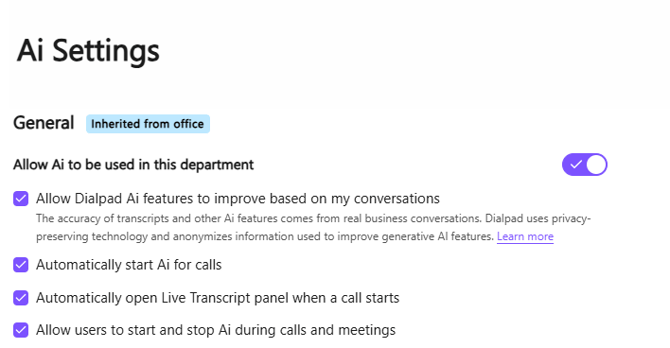
### 4. Enable AI Settings
Dialpad offers built-in AI tools that help teams work smarter—through live transcriptions, call summaries, and conversation insights. These features can be controlled at the **Department level**, but settings may be **inherited from the Office**.
**Options Explained:**
- **Allow Dialpad Ai features to improve based on my conversations**
Enables Dialpad’s AI to learn from your team’s calls and meetings. This helps improve transcription accuracy and other AI features over time. Dialpad anonymizes and securely processes the data to protect privacy.
**Note:** This setting supports ongoing improvement of Dialpad’s generative AI capabilities. It does not share personal or sensitive content externally.
- **Automatically start Ai for calls**
When enabled, Dialpad Ai will begin running automatically for every call—no manual activation needed. It ensures that transcripts, real-time assistance, and call summaries are captured consistently.
- **Automatically open Live Transcript panel when a call starts**
This setting opens the live transcript view at the beginning of each call so users can see AI-generated captions and summaries in real time—ideal for staying focused or for accessibility purposes.
- **Allow users to start and stop Ai during calls and meetings**
Gives users control to manually turn Dialpad Ai on or off mid-call, depending on their preference or the sensitivity of the conversation.
### 5. Integrations & Advanced Settings
#### **Integrations**
Available on **Dialpad Ai Voice Connect Pro and above**, CRM integrations must first be enabled at the office level.
Once enabled, you'll see a list of supported CRMs (e.g., Salesforce, HubSpot, Zoho). The integration status per CRM will display as:
| Status | Meaning |
| --- | --- |
| **Disabled** | Not yet enabled at the office level |
| **Enabled – Not Connected** | Enabled but not authenticated/linked |
| **Enabled** | Active and functioning properly |
CRM integrations typically allow actions like:
- Syncing call logs to the CRM
- Syncing AI summary and recap to the CRM
- Ticket creation, and more
**To manage or connect:**
- Click on **Integrations** to expand this section, and click the **Options** button next to the CRM
- Explore advanced features:
- Call Waiting
- Department Failover
- Spam Blocking
- Automatic Call Recording
#### **Advanced Settings**
These options provide granular control over how your Main Line operates. You'll find these in the **Main Line \> Advanced Settings** section:
**Call Recording Access**
- **Allow operators to access call recordings and summaries for their own calls**
Enables individual access to call content for accountability and review.
- **Allow operators to access call recordings and summaries for all calls within this department**
Grants broader visibility across the department’s call history.
**Data Deletion Controls**
- **Allow operators to delete calls, recordings, voicemails, and transcriptions for their own calls**
Empowers operators to manage their own data securely.
- **Allow operators to delete calls, recordings, voicemails, and transcriptions for all calls**
Provides elevated permissions—use with caution and ideally restrict to managers or supervisors.
**Resolution Notes**
- **Require operators to add fax resolution notes**
Prompts staff to include a reason or outcome for each fax interaction.
- **Require operators to add voicemail resolution notes**
Ensures voicemails are followed up with appropriate context or next steps.
**Call Waiting (for Simultaneous Routing)**
- When **enabled**, all operators will receive incoming call notifications, even if they’re currently on a call.
- When **disabled**, only available operators (not already on a call) will be notified.
#### Notifications
**Email Alerts for Voicemails and Faxes**
You can configure notifications to go to additional recipients:
| Type | Action |
| --- | --- |
| **Voicemails** | Forward to a specified email address |
| **Faxes** | Forward to a specified email address |
#### Failover Number (Disaster Recovery)
Enter a **non-Dialpad (PSTN) number** to forward calls to in the rare event of a Dialpad service disruption.
#### Call Blocking & Spam Prevention
Filter unwanted or suspicious calls before they reach your team:
- **Send the following to voicemail and spam:**
- Anonymous callers
- First-time callers
- Callers with a high spam score
Messages from these sources will bypass notifications and appear in the spam tab of your inbox.
### Frequently Asked Questions
#### Why do I have two numbers?
- **Main Line** = Your company’s public-facing number
- **Direct Dial** = Your personal extension number
#### Can I change my Main Line number?
Yes. You can:
1. Add a new number.
2. Remove the old Main Line.
3. Delete the number from the reserved pool to avoid charges.
#### **Contact Us.**
If you need more assistance, call or text us on **0480 006 410** or email [**support@untangled.com.au**](mailto:support@untangled.com.au)
- [Getting Started](https://knowledge.untangledict.com.au/getting-started?hsLang=en#main-content)
- [Troubleshooting & Support](https://knowledge.untangledict.com.au/getting-started?hsLang=en#troubleshooting-support)
- [First Time Set Up](https://knowledge.untangledict.com.au/getting-started?hsLang=en#first-time-set-up)
- [Onboarding Guides](https://knowledge.untangledict.com.au/getting-started?hsLang=en#onboarding-guides)
- [Using Dialpad](https://knowledge.untangledict.com.au/using-dialpad?hsLang=en#main-content)
- [Dialpad Users](https://knowledge.untangledict.com.au/using-dialpad?hsLang=en#dialpad-users)
- [Dialpad Admin](https://knowledge.untangledict.com.au/using-dialpad?hsLang=en#dialpad-admin)
- [Hardware Configuration](https://knowledge.untangledict.com.au/using-dialpad?hsLang=en#hardware-configuration)
- [Dialpad Knowledge Bites](https://knowledge.untangledict.com.au/using-dialpad?hsLang=en#dialpad-knowledge-bites)
- [Untangled HBX](https://knowledge.untangledict.com.au/untangled-hbx?hsLang=en#main-content)
- [HBX User](https://knowledge.untangledict.com.au/untangled-hbx?hsLang=en#hbx-user)
- [HBX Admin](https://knowledge.untangledict.com.au/untangled-hbx?hsLang=en#hbx-admin)
- [Devices](https://knowledge.untangledict.com.au/devices?hsLang=en#main-content)
- [Yealink](https://knowledge.untangledict.com.au/devices?hsLang=en#yealink)
- [Jabra](https://knowledge.untangledict.com.au/devices?hsLang=en#jabra)
- [Mobiles](https://knowledge.untangledict.com.au/mobiles?hsLang=en)
- [Internet](https://knowledge.untangledict.com.au/internet?hsLang=en)
- [Accounts](https://knowledge.untangledict.com.au/accounts?hsLang=en#main-content)
- [Active Billing](https://knowledge.untangledict.com.au/accounts?hsLang=en#active-billing)
- Home
- Products
- Pricing
- Blog
- Company
[](https://www.untangled.com.au/)
Untangled Help Centre | 0480 006 410
Copyright © 2025, Untangled
```json
{
"@context" : "https://schema.org",
"@type" : "VideoObject",
"contentUrl" : "https://6789292.fs1.hubspotusercontent-na1.net/hubfs/6789292/Dialpad%20Call%20Flow%20Settings.mp4",
"dateModified" : "2025-04-08T05:26:31.268Z",
"duration" : "PT3M6.688S",
"height" : 1080,
"name" : "Dialpad Call Flow Settings",
"thumbnailUrl" : "https://6789292.fs1.hubspotusercontent-na1.net/hubfs/6789292/Dialpad%20Call%20Flow%20Settings.mp4/medium.jpg",
"uploadDate" : "2023-11-29T00:53:02.832Z",
"width" : 1920
}
```
```json
{
"@context" : "https://schema.org",
"@type" : "VideoObject",
"contentUrl" : "https://stream.mux.com/lwY00bk1Wp2e263UGDitIagyUEvbrcLRt5rsQb8lnpb00/capped-1080p.mp4",
"dateModified" : "2025-05-27T22:18:43.985Z",
"duration" : "PT22S",
"height" : 1080,
"name" : "Dialpad Integrations - How to Enable",
"thumbnailUrl" : "https://6789292.fs1.hubspotusercontent-na1.net/hubfs/6789292/Dialpad%20Integrations%20-%20How%20to%20Enable.mp4/medium.jpg",
"uploadDate" : "2025-05-27T22:18:40.622Z",
"width" : 1920
}
```
```json
{
"@context" : "https://schema.org",
"@type" : "VideoObject",
"contentUrl" : "https://stream.mux.com/tsnqXQhRl02ReZa0238e1ZyMz1NfmTpw02z2GNXfaU8LRY/capped-1080p.mp4",
"dateModified" : "2025-05-27T22:28:47.806Z",
"duration" : "PT15S",
"height" : 1080,
"name" : "Dialpad Advanced Settings",
"thumbnailUrl" : "https://6789292.fs1.hubspotusercontent-na1.net/hubfs/6789292/Dialpad%20Advanced%20Settings.mp4/medium.jpg",
"uploadDate" : "2025-05-27T22:28:44.832Z",
"width" : 1920
}
```